INDIGO Park Canada
1 Place Ville-Marie, Suite 1130,
Montréal, Quebec H3B 2A7
1 Place Ville-Marie, Suite 1130,
Montréal, Quebec H3B 2A7
1 Place Ville-Marie, Suite 1130,
Montréal, Quebec H3B 2A7

Easily manage your Indigo Neo parking booking with this step-by-step guide. Learn how to view, modify, cancel, or extend your session, update vehicle details, and access your QR code for seamless parking.
Booked your parking and have a question?
This guide is here to help. Whether you need to find your booking, learn how to cancel or extend a session, update your vehicle, or fix a problem, you’ll find answers below.
Jump to:
How to View and Access Your Booking
How to Change or Cancel your Booking
How to Extend Your Parking Session
How to Access Your Parking Pass or QR Code
How to Manage your Vehicle and Payment Information
Troubleshooting Common Booking Issues
Once you’ve made a reservation through the Indigo Neo app or website, you can view it anytime. Open the website or app and sign in.
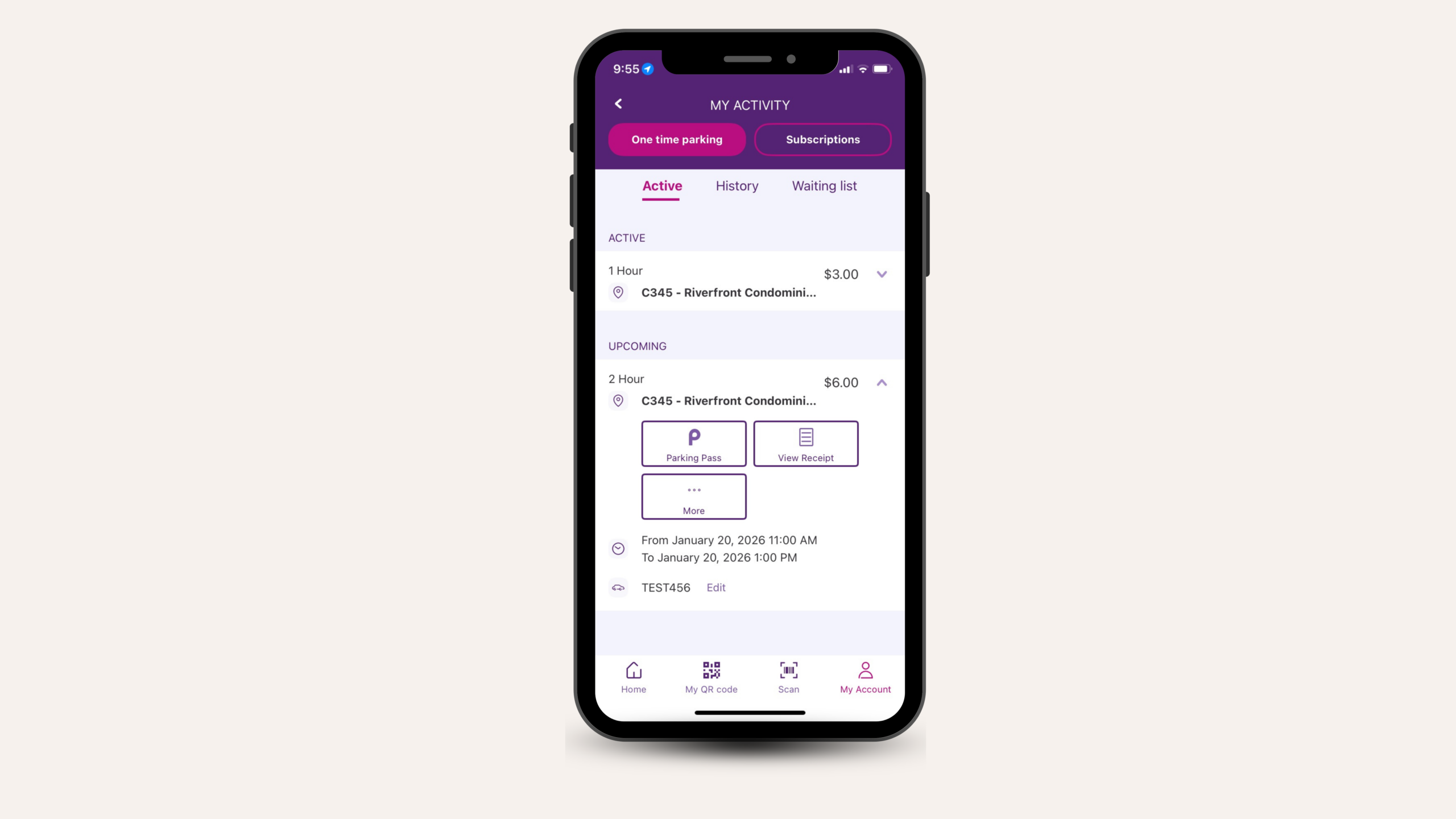
Here you’ll find:
You can access this information anytime, which is especially helpful if your plans change or you need confirmation on the go.
When you make a booking, you’ll also receive an email confirmation with all the details.
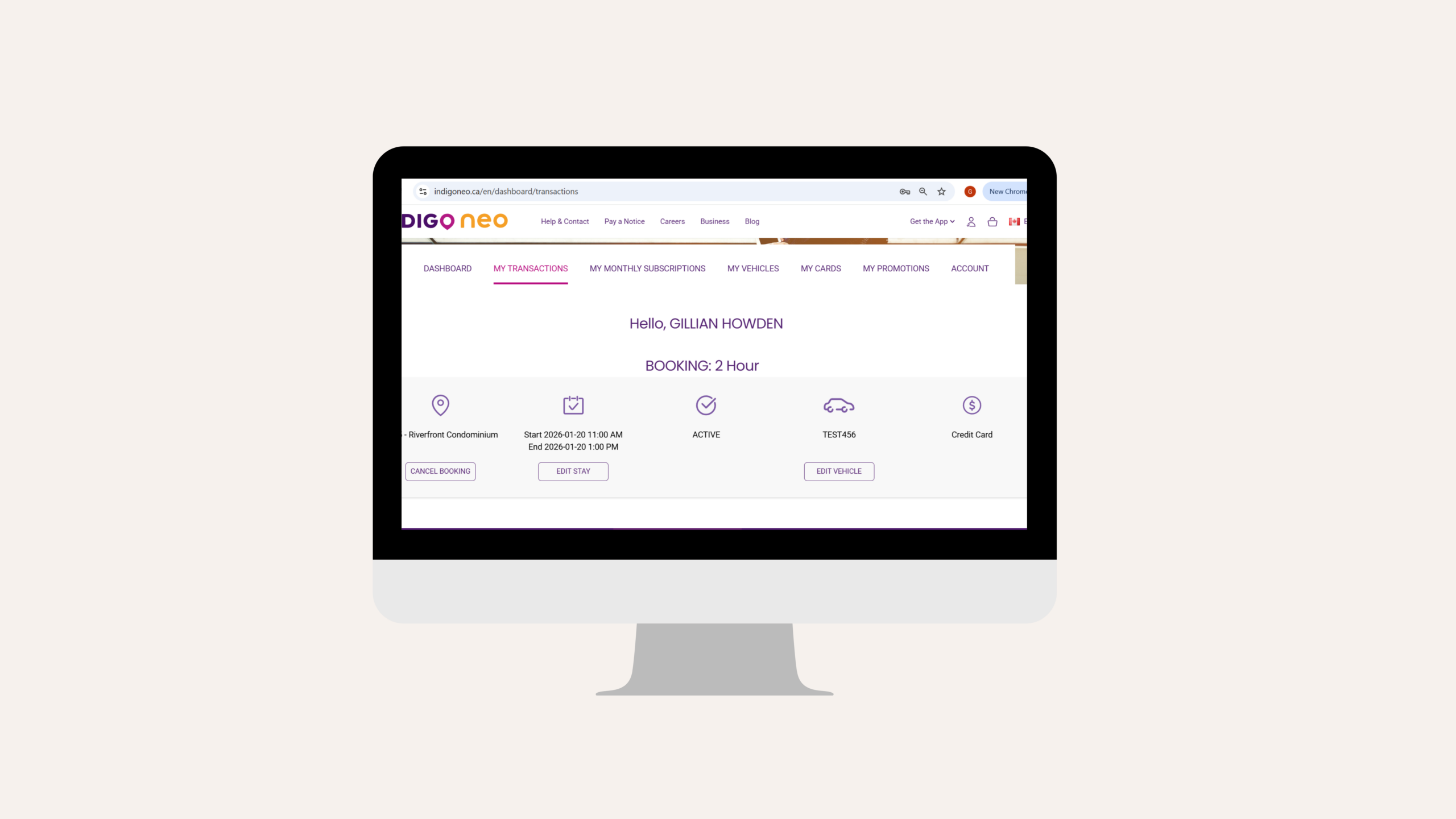
Website Bookings:
If you’ve booked your parking in advance and your session hasn’t started yet, you can make changes to your booking. This includes updating your license plate, cancelling the booking, or adjusting the start and/or end time (at eligible locations).
Once the transaction has already started, you can no longer make any changes to the booking online, except changing your plate (at eligible locations).
App Bookings:
In the app, you can update your license plate or cancel your booking as long as your session hasn’t started. Start and end times cannot be changed.
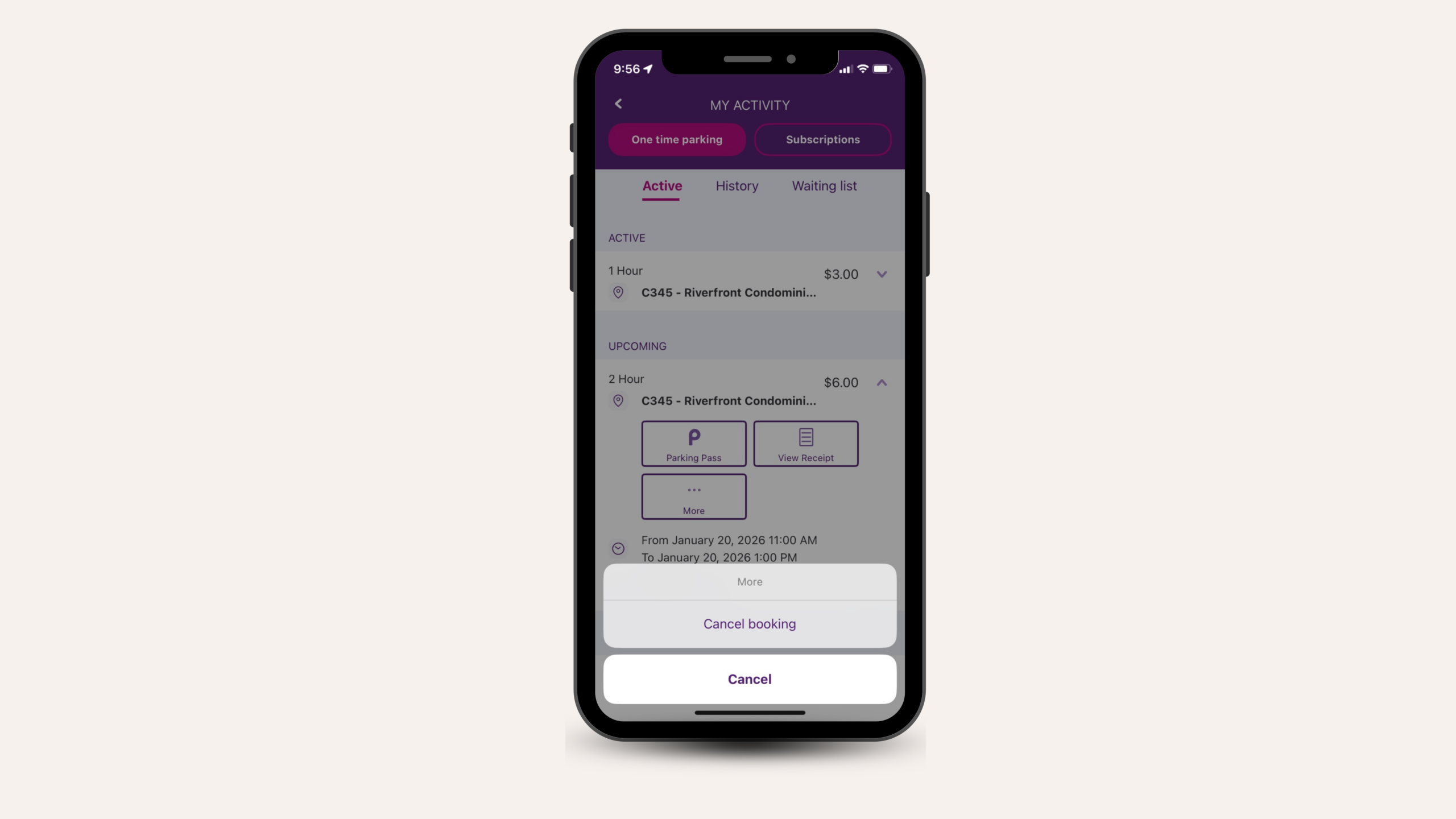
You can cancel either through the app or the website.
Most bookings can be cancelled up to 30 minutes before the start time (most transactions are eligible for a full refund; fees may apply at some locations).
If you cancel after that window or once the booking has started, refunds may not apply.
Refunds are issued to the original payment method and may take a few business days to appear, depending on your bank.
You can arrive up to one hour before your booking starts and stay after the end of your initially booked duration without problems. But kindly note that the time before or after the period booked will be charged at the current public rate of the car park and will be added to your original bill.
Your booking is tied to the license plate entered at checkout.
If you need to park a different vehicle:
If you find you need more time at your lot, where applicable, you can simply extend your parking session or purchase another transaction to continue it.
Enabling notifications helps you stay on top of your booking. To do this:
We recommend turning on alerts for:
These notifications can prevent overstay charges and missed bookings.
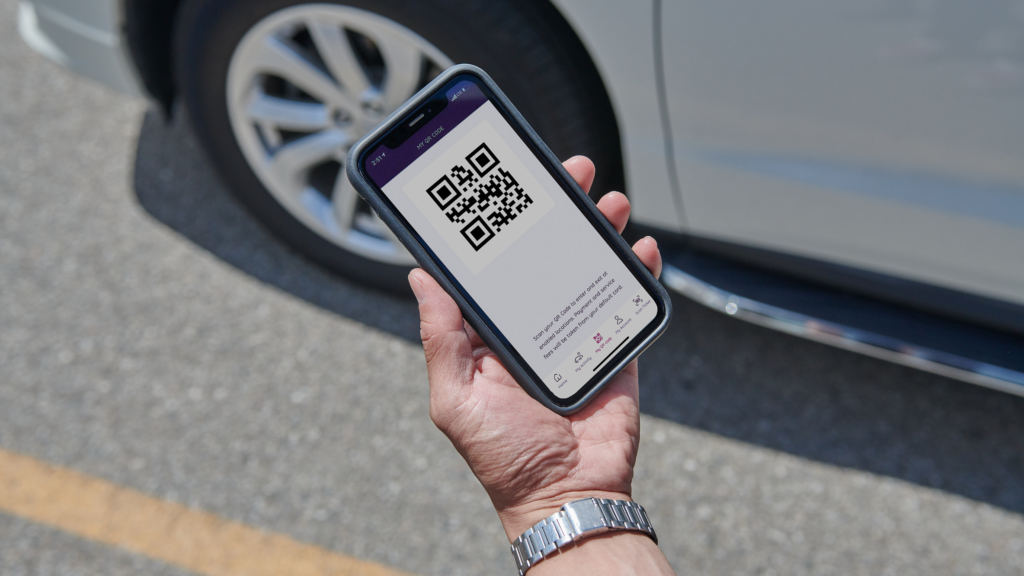
Some gated or controlled-access locations use a digital parking pass or QR code. You’ll find your QR code on the app, in the bottom menu under ‘My QR Code. It will also be emailed to you.
Keep it handy for entry or exit if required.
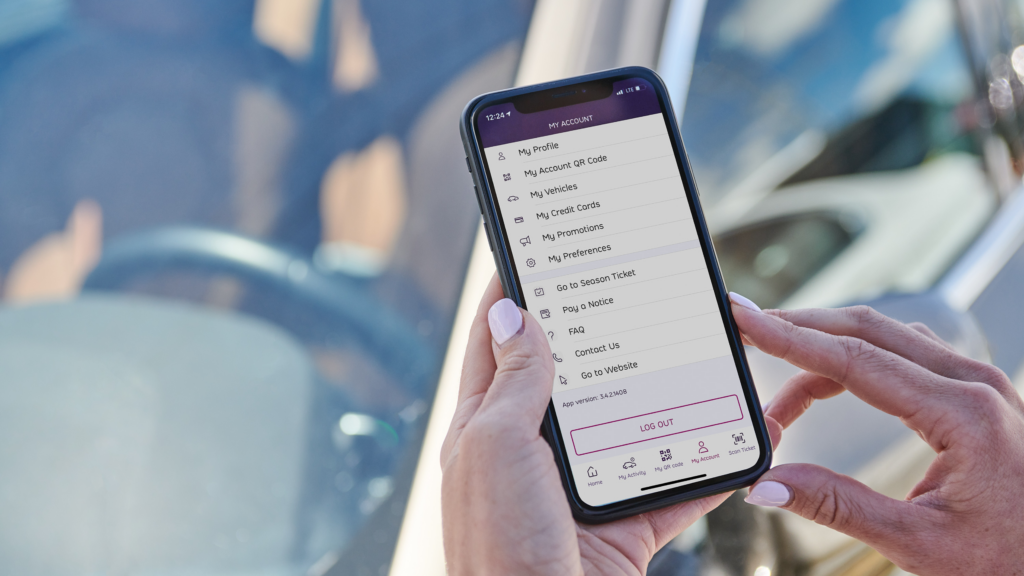
In your account settings, you can:
Tip: Double-check which vehicle is selected before booking, especially if you share an account or own multiple cars.
You can also update:
Keeping payment info current ensures bookings go smoothly and refunds are processed without delays.
This can happen if a session didn’t fully complete. Contact Indigo Neo support with:
Entry and exit are by QR code from the parking pass that was emailed to you, so if the gate isn’t opening;
If this fails, please take a ticket and pay for your parking. Keep proof of purchase and submit a request for a refund of your unused booking.
You can reach the support team through:
Support can help resolve booking, access, or payment issues quickly.
Want a full rundown on how Indigo Neo works? Check out our guide here.